Trackers
Connect the player to a production tracker, read a playlist from it and publish the review's notes to it: Bernard Engine, then Kitsu, ftrack and Flow Production Tracking.
A production tracker holds the list of a film's shots, versions and tasks. Bernard Review can read a playlist to review from it, then send the notes and the annotated frames back, shot by shot. Nothing runs on its own: each exchange is a click, or a script's command.
Bernard Engine
Bernard Engine is the production tracker of AArts Lab, the publisher of Bernard Review; it is a separate product, sold separately, and is coming soon as open source.
In this version, Bernard Engine (coming soon) is listed first in the Tracker list of the Review Notes tab but cannot be chosen yet: direct publishing to Bernard Engine is coming soon. Meanwhile, a pipeline connected to Bernard Engine exchanges with the player through scripts:
- the playlist comes in as a
.bplfile, each clip carrying the tracker's identifiers (thex_trackingblock); - the notes go out through the notes export, whose JSON file gives those identifiers back clip by clip: each note finds its version without comparing file names.
The details are in Integrations.
Kitsu, ftrack and Flow Production Tracking
File > Tracker... opens the Tracker window. It floats at first and docks like any other panel. Calls to the tracker run on their own: the player never waits for the network, and Cancel stops the call in progress.
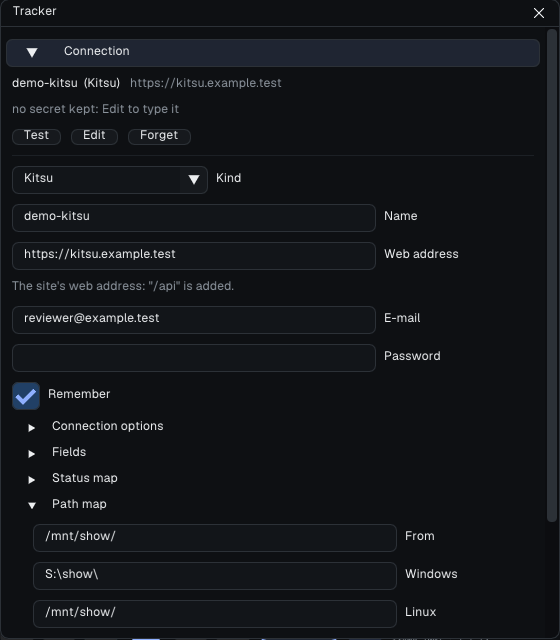
Add a site
A site is a tracker and your account on it. Add asks for the kind, then:
| Kind | Fields |
|---|---|
| Kitsu | the site's address, your e-mail, your password |
| ftrack | the site's address, the API user, the API key |
| Flow | the site's address, the script name, the script key |
A tooltip on each field says where to find it: for Flow, Admin > Scripts > + Script (the key is shown only once, when the script is created: copy it then); for ftrack, My Account > API key; for Kitsu, the e-mail and password you sign in to the site with.
Technical details Proxy, path and status maps, addresses and secrets
For every kind: a proxy, a certificate-authority file for a studio that has its own, the Path map (a studio path and what it becomes on Windows, Linux and macOS) and the Status map (the player's statuses, pending, approved and not approved, and the tracker's for each).
The address must start with https://; http:// is accepted only towards this machine itself (localhost), for instance an SSH tunnel to a test tracker.
Secrets. The password or key field is masked. With Remember ticked, the secret goes to the system's credential store (Windows Credential Manager, the Secret Service on Linux, the macOS keychain), and only once the tracker has accepted it. Without a store, the panel says stored without encryption: the secret goes to a file of your profile readable by you only. A pipeline can also give it through the BERNARD_TRACKER_<ID>_SECRET variable (the site's name in capitals), which wins: the panel then says secret from the environment. The sites file, trackers.json, never holds a secret.
Save & Test keeps the site and connects; Test connects again and shows the user the tracker knows, or the error; Forget removes the site and its secret.
Load a playlist
Choose the project, then the playlist; a filter narrows the list. The preview says for each clip where its media is: local (the path the tracker gave), mapped (that path, through the Path map) or not local. Replace replaces the playlist, Append adds after it.
A clip whose media is not on this machine is kept with its identifiers and stays publishable; it is never opened, exported or sent to a session's guests, and playback skips it.
Previews. Nothing is downloaded while loading. When some shots are not on this machine, one question follows the load: 3 shots are not on this machine (4.5 MB). Download All fetches them in the playlist's order, one at a time, only while nothing plays, and each shot plays as soon as it is here; Later downloads nothing. When Kitsu, ftrack or Flow hosts the media, a Download preview button also fetches one shot into your profile, where it is kept 7 days by default (Edit > Preferences... > Cache & Performance > Keep downloaded previews (days)). A preview larger than 2 GB is refused. For Flow, it is the movie uploaded to the Version (its Uploaded Movie field, sg_uploaded_movie; another name is set with the site's uploaded_movie field key): it is only used when the Version's path (Path to Movie, Path to Frames, through the Path map) is not on this machine.
Open in Bernard Review from Flow
The installers register the bernardreview:// link (Windows: under the install's own Software\Classes, removed by the uninstaller; Linux: the x-scheme-handler/bernardreview type of the player's desktop entry). A Flow administrator adds the entry once, in Flow: Admin > Action Menu Items, a new item with URL bernardreview://flow, Entity Types Version and Playlist, and the title Open in Bernard Review (Flow appends its own data to the address; nothing else to set). A right click on versions or a playlist then shows the entry; the browser asks once whether it may open Bernard Review.
- One version clicked: the versions shown on the page open, in their order, on the one clicked. Several selected: only those. A playlist: the whole playlist.
- The link opens the player, or goes to the player already open. The site must be one set up here (File > Tracker..., the same address): a link from another site is refused with its name, and nothing is sent anywhere. The versions are read again by your own connection, with the secret already kept; without one, the player says to connect once in File > Tracker....
- With an empty playlist the clips are loaded at once. Otherwise the Tracker window shows them with Replace and Append, as a playlist chosen there (Replace warns about clips you opened by hand). A clip whose media is not on this machine gets Download preview, as above.
- Only the site, the kind of entity and the ids are kept from the address; your Flow login and the page it came from are never written anywhere.
From Kitsu. Kitsu's entry is a custom action (the Custom Actions page of the administrator's menu), shown only when tasks are selected (pages Shots, Assets...), not on the Playlists page. Kitsu sends the selection as a hidden form, which a bernardreview:// address cannot carry: the custom action's URL is a small relay page, which turns the form into bernardreview://kitsu?entity_type=Task&selected_ids=<the tasks>&project_id=<the project>&server_hostname=<your Kitsu's host> and keeps nothing (it should drop the e-mail Kitsu adds). Each selected task opens as its latest preview, in the selection's order, on the first one; the rest is as for Flow (a Kitsu site set up here, Replace / Append, Download preview). The relay page: Bernard Review's relay server will offer one; a studio that wants to host it itself takes tools/kitsu_relay.py (one file, Python standard library): run it with any WSGI server behind your HTTPS address (its application), or alone to try it (python kitsu_relay.py --host 127.0.0.1 --port 8765). It sees the e-mail and the task ids Kitsu posts, keeps and logs none of them, checks every id as a Kitsu id and the server as a site name, and answers at once with the link. Then, in Kitsu, a new custom action: Name Open in Bernard Review, URL the page's https address, Entity type All, AJAX unticked.
From ftrack. An ftrack action is not an address: when you open the Actions menu on a selection, ftrack asks a program that runs on your computer what it offers. That program is tools/ftrack_action.py (one file): no administrator right is needed and nothing is added to the ftrack site, but the entry shows only in your Actions menu and only while it runs. Run it with ftrack Connect (as a plugin of its own, bernard-review/hook/ftrack_action.py, in Connect's plugin folder or in a folder listed in FTRACK_CONNECT_PLUGIN_PATH, then restart Connect), or alone: python ftrack_action.py with FTRACK_SERVER, FTRACK_API_USER (your ftrack user name, the same as in File > Tracker...) and FTRACK_API_KEY (your personal API key) set, and the ftrack Python API installed (ftrack-python-api). Open in Bernard Review is then offered on versions (one or several: only those open, in the selection's order, on the first one) and on one list of versions or one review session (the whole of it, as a playlist chosen in the Tracker window). The click opens bernardreview://ftrack?entity_type=Version&selected_ids=<the versions>&server_hostname=<your ftrack's host> on this computer; the rest is as for Flow (an ftrack site set up here, Replace / Append, Download preview). The program keeps and logs nothing, checks every id as an ftrack id and the server as a site name, and puts neither your user name nor your key in the link. ftrack sends only the selection, never the versions shown around it: one version clicked opens that one.
Linux, the .sh installer. The DEB and RPM packages are taken into account by the desktop at once. After the .sh, run once: update-desktop-database ~/.local/share/applications (with the desktop entry copied there), then xdg-mime default bernardplayer.desktop x-scheme-handler/bernardreview.
Publish the notes
The Publish section, which File > Publish Notes to Tracker... also opens, lists the clips that have a note or at least one drawing. Only the ones loaded from the connected site can be ticked.
- Each note starts with
Reviewer:and your name, then the clip's note, then a[f1042] 00:00:43:10marker for each annotated frame, numbered and timed as the Review Notes tab shows it ([f1042]alone without a timecode). Note text shows that exact text before anything is sent. - Each annotated frame is attached as a PNG, with the clip's grade and the drawings.
- Publish status also updates each clip's status, through the Status map; off by default. When a site is tested (Save & Test, Test Again), the player reads the statuses its versions accept; an empty Status map is then filled from them (pending -> Pending Review, approved -> Approved, not approved -> a refusal status when the site has one), and you can change it under Edit. A status the site does not have is never sent: the note still goes, and the report says which status is missing and where to pick or create it.
- Dry Run shows the requests without writing anything.
- Publish... asks for confirmation, then reports clip by clip: published, skipped or failed, with the reason. A note already published and unchanged is skipped with the Already published badge: publishing twice never makes a second note.
Publish (N) and Finish review
At the top of the Review Notes tab (and, in Essential, beside the tracker pill), Publish (N) shows while a tracker is connected: N is what has not been sent yet, a note with its drawings or a status changed on its own. It opens the Publish window with Publish status ticked; it is grayed at 0.
- Statuses sent alone. A shot with a decision but no note or drawing sends its status alone, never an empty note, and only once: it goes again only when its status changes. A status changed on a note already published goes alone too.
- Finish Review shows once every shot is Approved or Not Approved. In Essential, Next Shot becomes Finish Review on the last shot, and a banner proposes it as soon as the last decision is set. In Complete it sits beside Publish (N), grayed with the number of shots still without a decision.
- It saves the playlist, publishes the decided shots with their statuses, then says what went (Review published: N notes, M statuses) with Close Player (the default) and Keep Working.
- If the tracker refuses or cannot be reached, nothing closes and everything stays saved: the window says what failed, with Retry. What already went is not sent twice.
- Without a tracker, Finish review saves, then offers the notes' export: HTML or Not Now.
The same operations exist as commands for scripts (tracker-sites, tracker-connect, tracker-publish...): see Python API and IPC. No secret goes through these commands.
Going further: the complete manual, part 6.6 (Help > User Guide).