Play and navigate
The playlist, the timeline, in and out points, speed, zoom, and the formats the player opens, camera RAW and Flash included.
The playlist
The Playlist tab of the Media & Session panel holds the clips of the review, in order.
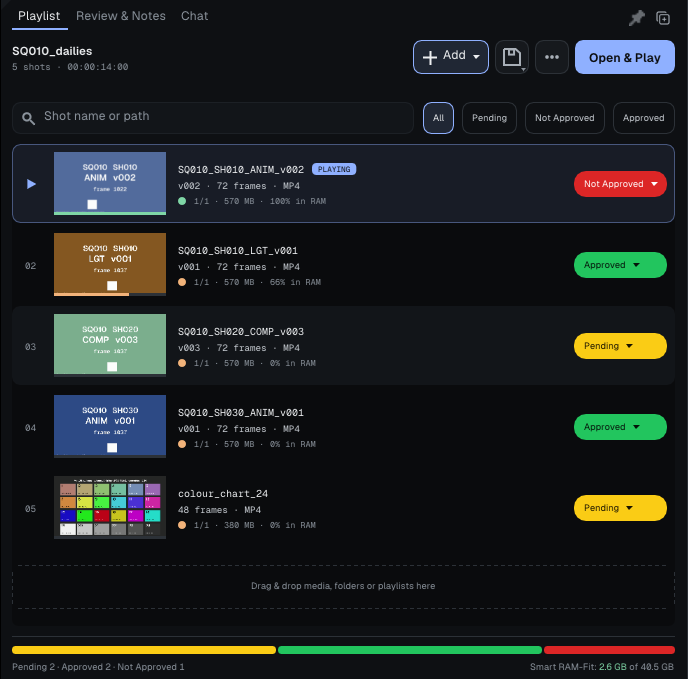
- Add: the Add menu (or a right-click on the empty part of the list) offers Add Videos / Image Sequences..., Add Folder......, Open File or Sequence... (which replaces the playlist) and Import Shot List......, which reads a list written elsewhere:
.bpl,.otio,.csv,.jsonor.edl. You can also drag files and folders from your file manager. - Sequences: with Auto-Detect Sequence ticked, a single numbered frame brings in the whole sequence as one clip.
- Order: drag a row up or down, while every clip is shown (no search, no filter).
- Find: the search field filters by name or path; the All, Pending, Not Approved and Approved filters, by status.
- Select: a click on a row shows that clip.
Ctrl+click andShift+click pick several rows, starting from the clip on screen; a right-click on the selection gives one menu: Delete N shots (after a confirmation), Open N folders, Copy N paths and Set N shots to a status. - Move between clips:
Page UpandPage Down, or double-click a row. Continuous Playback (Play All) runs on from one clip to the next instead of stopping at the end of each. - Remove:
DeleteorBackspace, with the mouse over the list, removes the selected clips, or the clip on screen when nothing is selected. Notes and drawings follow the media: add the file again and they come back.
A file opened from your file manager (double-click, Open with) goes to the player already open: it is added to its playlist and shown, without starting a second player (Open files in the running player, in Edit > Preferences... > General, turns this off). If no player is open, it starts with a new playlist holding that file alone. An unreadable format is refused and named in the Unsupported Format window.
The timeline

The numbers refer to the capture.
- 1 · The first number on the ruler is the frame number of the clip's first image. A sequence keeps the numbers of its files; a movie, or a sequence whose files carry no number, starts at
1001(Edit > Preferences... > General > Default Start Frame). Double-click it to change it: this renumbers the whole clip, it trims nothing. The same number is used everywhere: exports, notes, sessions and trackers. - 2 · The in point and 4 · the out point are the two green bars. Playback loops between them.
- 3 · The playhead shows the frame on screen. Click or drag anywhere on the ruler or on a track to move: a click always moves the playhead, even right next to a green bar.
- 5 · The green line marks the frames already in memory: those play without waiting.
To set the range:
Ior[sets the in point on the frame on screen,Oor]the out point.\goes back to the whole clip.- Bring the mouse close to a green bar: a small tab comes out at the top of the ruler. Drag it. Or hold
Altand drag anywhere: the nearer point follows the mouse. Shift+IandShift+Oopen a box where you type the frame number (1012) or an offset (+12,-8).Enterapplies,Escapecancels.- A right-click on the ruler offers Type In Point..., Type Out Point..., Reset In/Out Points and Lock In/Out, which stops the mouse from moving the points (the keys still work).
View > Display in Timecode shows time as timecode instead of frame numbers.
Speed, direction and sound
Lor the play button plays forwards,Jbackwards,Kstops.- The frame-rate field (
24.00 fps) changes the speed: drag it, double-click to type a value, or right-click for the common rates. It works the same in Essential. - An image sequence has no frame rate of its own: it takes Frame rate for image sequences without one (Edit > Preferences... > General,
24by default) when it is added. Movies keep their own rate. - The Loop button goes through three modes: Shot (loop the clip), Playlist (loop the playlist) and Off (play once).
Ctrl+Lturns looping on or off. Mmutes the sound. In A/B, each track's speaker chooses which sound you hear;Ctrl+click a speaker to hear both.
Zoom, framing and fullscreen
- Mouse wheel: zoom around the cursor. Middle click and drag: pan the picture.
Ffits the picture to the window,Alt+Fopens the zoom menu.Alt+1,Alt+2and4zoom to 100%, 50% and 25% (withoutShift, even on AZERTY); bare1/2/3set the shot's status (Not Approved / Pending / Approved) and go to the next shot.Homere-centers the picture.Xflips the picture horizontally,Shift+Xvertically.F11, the fullscreen button or View > Fullscreen enter and leave fullscreen;Escapeleaves it. In fullscreen,Tshows or hides the timeline. By default a double-click on the picture never enters fullscreen, so two quick taps of a pen never change the window; Double-click on the picture: fullscreen, in Edit > Preferences... > Appearance, gives it back.
Formats
| Family | Formats |
|---|---|
| Image sequences | OpenEXR (multi-part and AOVs included), DPX, TIFF, PNG, JPEG |
| Review copies | NOVA .nvfx, the player's review format (see Notes and export) |
| Movies | MOV, MP4, MKV, MXF, and what the FFmpeg shipped with the player reads |
| Camera RAW (Windows) | RED .r3d, Blackmagic RAW .braw, ARRIRAW .ari and .mxf |
| Flash | video and vector .swf |
Technical details Multi-layer EXR, NOVA, camera RAW, Flash and metadata
Multi-layer EXR. A multi-part EXR is detected on its own and a notice on the picture says so. The track's Layers / AOV list picks the pass on screen; switching passes keeps the frames already in memory.
NOVA (.nvfx). The player's review format, which it writes itself on export. A .nvfx sequence opens like any image sequence, with the Layers / AOV list: each layer of a multi-part EXR is kept on its own, and switching layers reads that layer alone. It is not an interchange format: between applications EXR stays the rule, and the export writes EXR back from a .nvfx sequence.
Camera RAW. RED, Blackmagic RAW and ARRIRAW files play without transcoding in the Windows version; Linux and macOS: coming soon. Debayering runs on the graphics card when Enable Hardware Decode (Beta) is ticked (see Memory and performance). Help > About..., section Color and versions, says which RAW SDKs your version carries.
Flash (.swf). A video SWF plays like a movie. A vector SWF (an animatic, an animation test) is first rendered once to frames by Ruffle's exporter, in the background; a notice counts the frames as they are drawn, then the clip appears in the playlist and plays, grades, annotates and exports like a sequence. The installers put the exporter next to the player; Preferences > General > Flash (SWF) says whether one was found and lets you choose another.
Metadata. The Inspector's Metadata tab lists the file's metadata, with a search; in A/B it shows A and B side by side.
Going further: the complete manual, parts 3, 6.1 and 9 (Help > User Guide).