Memory and performance
The memory ceiling, Smart RAM-Fit and decode resolutions, the Cache & Performance tab, and what to set when decoding cannot keep up.
The player keeps decoded frames in memory, chooses each clip's decode resolution and tells you when decoding falls behind. The defaults suit most workstations.
The memory ceiling
The player as a whole never uses more than its ceiling: the machine's RAM less 20%, always left to the system. Everything counts in it, thumbnails and shared video memory included. RAM Limit (GB) can lower the ceiling, never raise it. If the system runs short of memory anyway, the player gives part of its cache back.
The player decodes upcoming frames in the background, and the start of the neighboring clips. Playback > Precache Whole Playlist (Ctrl+Shift+P) loads the whole playlist, still under the ceiling. The timeline's green line shows what is already in memory.
Smart RAM-Fit and the decode resolution
Decoding every pixel of an 8K plate to watch it on a 1080p screen wastes time and memory. Proxy Resolution chooses how much of each frame to decode: 1/1, 1/2, 1/4, 1/8, or Smart RAM-Fit, the default.
Smart RAM-Fit starts from what your screen needs: on a 1080p screen, a 1080p clip at full resolution, a 4K one at 1/2, an 8K one at 1/4. It never goes below that by itself, in a small window, after a resize or in full screen. Then it looks at the whole playlist: if everything does not fit the budget, the clips keep their resolution, fewer frames are kept ahead and the rest is read from disk; when the clip on screen does not fit whole, the banner of the playlist panel says so, with the RAM free and a reminder to close other applications. Two versions of the same shot always decode at the same resolution. A movie longer than two minutes is played from disk and left out of the sum.
- The clip on screen keeps its resolution. When the picture is reduced, a Reduced 1/4 badge shows at its bottom right: a click, or
Ctrl+Shift+F, shows that clip at full quality; again to go back. - The original is read at 100% zoom and above, while the scopes are open and for exports. The pipette, held a second on a paused picture, reads the original of that frame only, for its values: the badge says Probe: original… then Probe: original (the picture on screen keeps its tier), the pipette marks its values preview until then, and Play gives the badge back its normal text. When When Decoding Is Too Slow lowers the picture to keep playback smooth, the badge shows and its tooltip says so.
- A resolution you fix by hand (1/1, 1/2, 1/4 or 1/8) is never changed by Smart RAM-Fit again. If the playlist does not fit, with the Smart clips at the resolution the screen asks for, a banner offers to lower your fixed clips: Apply or Ignore.
Changing the resolution changes only the sharpness, neither the size nor the framing.
The playlist says where each clip stands
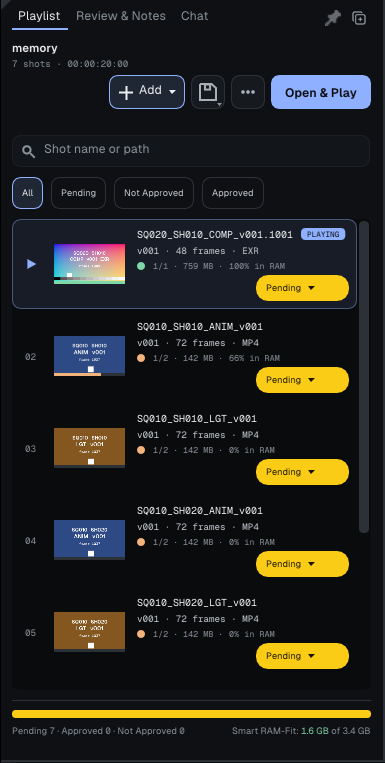
Each playlist row gives the clip's resolution, its weight and how much of it is in memory, for example 1/2 · 1.1 GB · 100% in RAM, after a colored dot:
| Dot | Meaning |
|---|---|
| Green | the whole clip is in memory |
| Orange | only part of it, the fill is still running |
| Gray | a long movie, played from disk |
| Red | the clip alone weighs more than the whole budget at this resolution: lower it or raise the budget |
The footer of the list gives what the playlist needs against what is available: Needs 3.1 GB · 3.4 GB available (the first figure in red when it is more: the frames past it are then let go and read again from disk).
The Cache & Performance tab
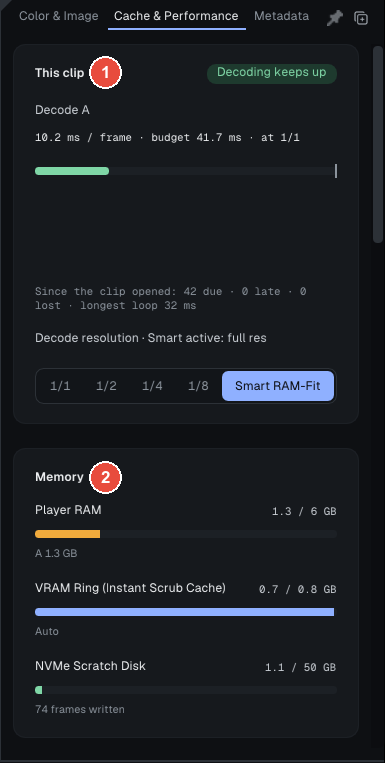
The Inspector's Cache & Performance tab starts with two cards, numbered on the capture; further down come the workstation's settings (the same controls as the Preferences), a Details card and Global settings...:
- 1 · This clip: a pill says at a glance whether decoding keeps up (Decoding keeps up, From RAM, decoding is slower, Too slow: frames skipped or Nothing being decoded), then the decode time per frame against the frame rate's budget, and the clip's resolution.
- 2 · Memory: Player RAM, VRAM Ring (Instant Scrub Cache) and NVMe Scratch Disk.
- Global settings..., at the bottom, opens Edit > Preferences... > Cache & Performance.
Technical details The workstation's settings: preload, VRAM ring, disk cache, precision, hardware decode
The workstation's settings:
- Preload Media to RAM and Look-ahead (frames, paused) (48 by default): while paused, the player loads the frames after the playhead, then fills the whole clip coarse to fine, so it scrubs quickly from end to end.
- VRAM Ring Limit: a ring of textures on the graphics card around the playhead makes scrubbing instant. On Auto (the default) it takes 85% of the available video memory.
- The disk cache (L2) keeps frames pushed out of memory on an SSD when reading them back costs less than decoding them: Enable L2 NVMe Disk Cache, Disk Quota (GB), Clear Disk Cache Now.
- Cache Precision: Auto (half float for EXR and DPX, 8 bits for PNG, JPEG, TIFF and video), 16-bit Half-Float or 32-bit Float. Cache 8-bit to save RAM when not grading halves an EXR's memory but clips its highlights: an orange 8-bit Cache warning says so if you grade.
- Enable Hardware Decode (Beta): hardware video decoding and RAW debayering on the graphics card, falling back to the processor when it cannot.
When decoding cannot keep up
At 24 frames per second, each frame must decode in under 41.7 ms. When decoding is slower and frames are skipped, the line above the picture says so (Decode 117 ms/frame, too slow for 24 fps). When Decoding Is Too Slow decides what happens next:
- Off (the default): the resolution never changes; frames are skipped, and the warning shows.
- Auto: a clip on Smart RAM-Fit goes down one resolution after two seconds of lost frames, and a notification says so. If the lower resolution is not at least 25% faster, it gives up; when decoding is fast enough again, it goes back up.
A resolution fixed by hand is never changed. Your choice holds in Essential too.
Going further: the complete manual, parts 3.8 and 10 (Help > User Guide).