Compare
Put two versions side by side with the A/B wipe, flick from one to the other, step through a shot's versions and read the Version Board.
A/B mode puts two clips in the viewer, split by a line you can move. It is how a new version is checked against the old one, or a render against its plate.
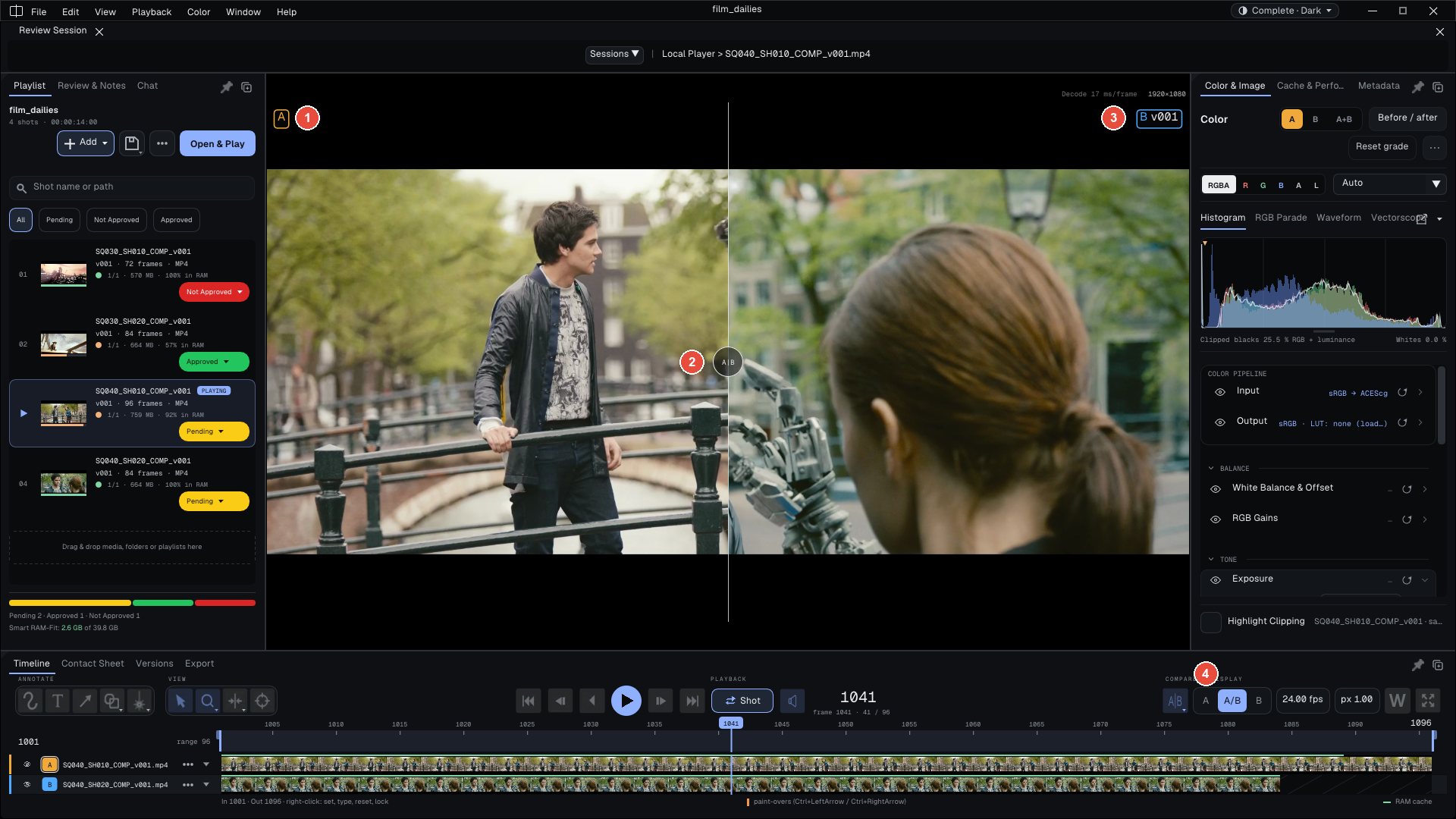
Images: Sintel and Tears of Steel, (CC) Blender Foundation | studio.blender.org
Start a comparison
- Press
W, click the A/B button on the transport row, or choose Window > A/B Mode. The viewer splits. - While track B is empty, its side of the picture and its timeline row read Double-click or drop a plate here to compare. Drop a file there, or double-click to choose one. The A/B button's right-click menu also offers Load Version B....
- Track A is the playlist's clip; track B is not added to the playlist.
Where you drop files on the timeline matters: on B's row, the first file goes onto track B; on A's row, the files are inserted into the playlist right after the clip on screen.
The wipe
On the capture: 1 the A letter (amber), 2 the wipe handle, 3 the B letter (blue), 4 the A | A/B | B switch.
- Move: drag the divider. A click alone does not move it.
- Turn: drag the divider with the right mouse button; it turns around its handle, which stays where it is. A double-click on the handle goes through four angles: vertical, horizontal, 45° and 135°.
- Menu: a right-click without a drag, on the divider or on the A/B button, offers Horizontal Split, Vertical Split, the two diagonals and a free angle slider.
- The letters A and B show while you handle the wipe, then fade out after 1.5 s. Edit > Preferences... > General > A/B labels chooses On interaction (the default), Always or Never.
A alone, B alone
The A | A/B | B | Diff switch, right after the A/B button, shows A over the whole picture, the wipe, B over the whole picture, or the Difference (A in gray, the changes in color). On the keyboard: Shift+1 (A alone), Shift+2 (B alone), Shift+3 (the wipe), Shift+4 (Difference). S flips from A alone to B alone and back; from the wipe, the first press shows B. Nothing is reloaded: both tracks stay decoded and in memory, so the switch is instant. It is the quickest way to see what changed between two versions.
Track B

While B holds a clip, its track header in the timeline carries the clip's name and three commands. When the timeline is short, they are in the header's ••• menu, with Version and Layers (as on the capture); a taller timeline shows them as buttons:
- Pin pins track B: when you change clips in the playlist, B stays as it is, with its grade, its EXR pass and the view you chose. Useful to compare every clip against the same reference. Unpinned, changing clips empties B and turns A/B off.
- Replace... puts another clip on B. Dropping a file on B's row does the same.
- Clear empties B and turns A/B off.
Each track has its own grade: in the color panel, A, B or A+B chooses what you adjust (see Color). Each track's thumbnails follow its own grade. A channel you pick applies to both tracks; Alt+click a channel to change it on the active track only.
Step through versions on B
Up puts the next version of B's shot on track B, Down the previous one. Track A and the playhead do not move. The versions are the ones the Version Board knows for that shot, in order of their number: v001, v003, v007 follow one another without stopping at the missing numbers, and the list does not wrap round. B's label says which version is on screen, for example B v004.
To make the step instant, while paused the player preloads the frame under the playhead of the previous and the next version. Edit > Preferences... > General > Pre-load B's previous and next versions turns this off.
The Version Board
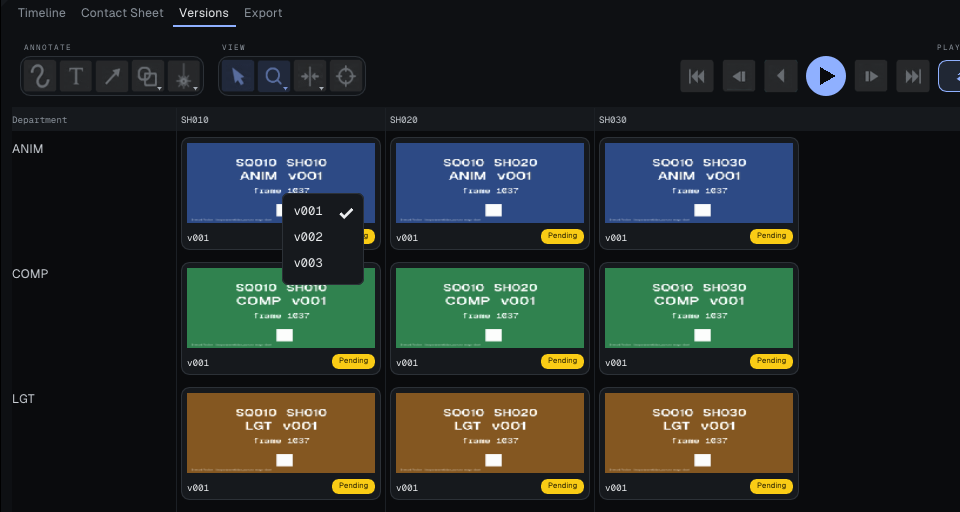
The Versions tab of the bottom panel, or Window > Versions, answers one question: for each shot and each department (layout, animation, lighting, compositing...), which version am I looking at, and which others exist?
- One column per shot, one row per department. Each cell shows the current version with its thumbnail and its status.
- Click: load the version. Double-click: load and play it. Right-click: list the other versions and switch.
- The sequence shown is the one of the clip on screen.
Technical details How the board fills in: the naming rule and the pipeline
The board fills in two ways:
- From the file names. Every clip added is read against the naming rule, by default
[Sequence]_[Shot]_[Department]_v[Version].[ext], for exampleSQ010_SH010_ANIM_v002.mov. DropSQ010_SH010_ANIM_v001.mov,SQ010_SH010_ANIM_v002.movandSQ010_SH010_LGT_v001.mov: the board shows one shot, two departments and two animation versions. The rule is a regular expression with four groups, innaming_rules.jsonin the settings folder (see Installation and IT). A file that does not match goes underDefaultSeq/Base. - From the pipeline. A script sends the versions with the
build-matrixcommand, with no naming convention and with the tracker's identifiers. See Integrations.
In a review session
Guests follow the pilot's view (A alone, the wipe or B alone), the wipe and its angle. The pin on B and the version stepped to with Up / Down stay each seat's own.
Going further: the complete manual, parts 4.6 and 6.4 (Help > User Guide).