Annotate
Draw on a frame, write a note, point with the laser, check motion with onion skinning, and find every remark again in the notes tab.
You draw straight onto a frame to mark up a correction. The drawing belongs to that frame of the clip and stays there; the written note belongs to the clip. Both come together in the Review Notes tab.
The tools
Press P to show the paint tools, then pick one:
| Keys | Tool | Use |
|---|---|---|
Shift+Q | Select | Take a stroke, shape, arrow or text, move it or delete it |
Shift+W | Brush | Freehand line |
Shift+E | Eraser | Remove specific strokes |
Shift+R | Arrow | Point at an area |
Shift+T | Shape | Rectangle or circle around an area |
Shift+Y | Text | Click on the picture and type |
Shift+U | Laser | A red dot with a fading trail, leaving no mark |
Escape leaves the tool. Strokes are stored in picture coordinates: they stay in the same place at any zoom, any decode resolution and any window size.
The paint bar
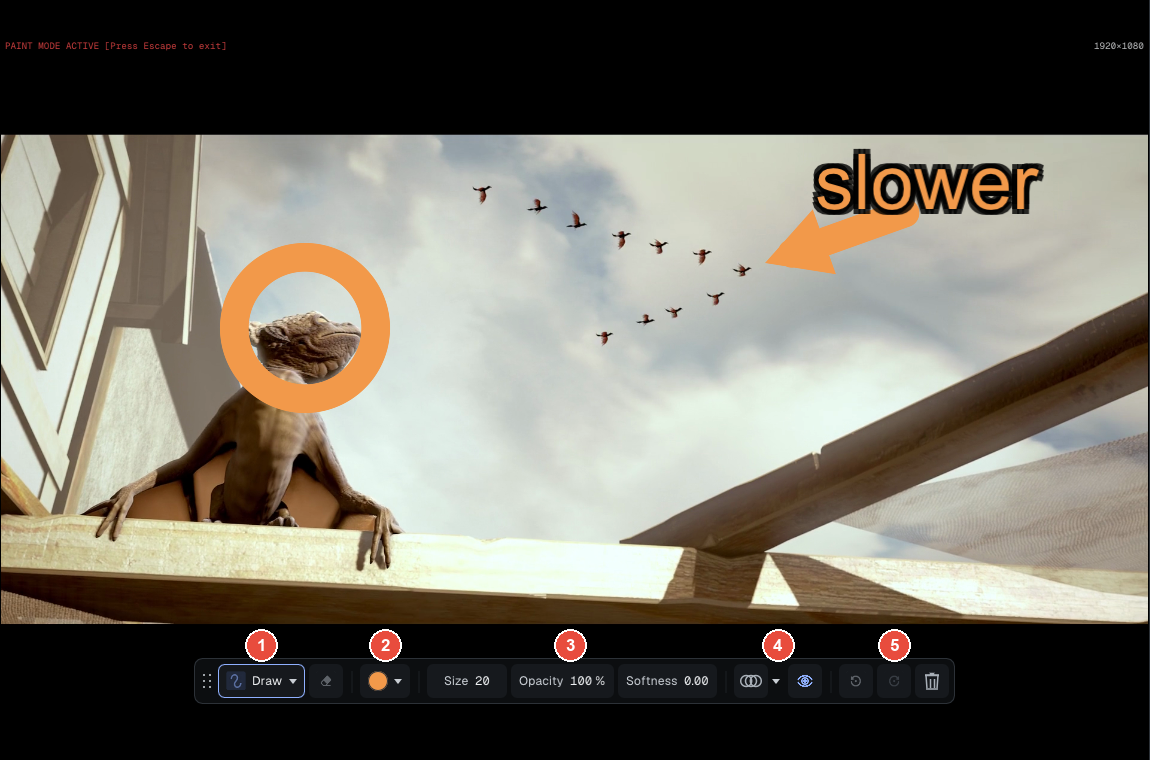
Image: Sintel, (CC) Blender Foundation | studio.blender.org
In Complete the bar floats over the bottom of the viewer; in Essential it is the bar at the top of the viewer, the same tools in one row. On the capture:
- 1 · The active tool: its icon and its name. A click opens the list of tools (Brush, Text, Arrow, Square, Circle, Eraser, Select). Next to it, the eraser is a switch: its shortcut again gives back the previous tool, with its settings.
- 2 · The color: a click on the swatch opens the palette, the preset colors and the color picker.
- 3 · Size, Opacity, Softness: drag left or right on the value, or double-click to type it. With the Text tool, Aa sets the font (Default, Arial, Times New Roman, Consolas, Handwritten), bold, italic and alignment.
- 4 · Display: onion skinning (see below) and the eye, which hides the frame's drawings in the viewer (exports keep them).
- 5 · History: Undo (
Ctrl+Z), Redo (Ctrl+Y) and the bin, Clear all drawings on this frame (Ctrl+Shift+X), which Undo brings back.
The dots at the left of the bar are a grip to move it; a double-click puts it back in its place.
Useful gestures
Shiftwhile drawing: with the brush, a straight line from the last point; with the rectangle, a square; with the arrow, an angle in steps of 45°. The circle is always round.- Move a drawing: with Select, click a stroke, shape, arrow or text, then drag it.
Deleteerases it,Escapelets it go. - Copy and paste:
Ctrl+Ccopies the selected stroke, or every drawing of the frame when nothing is selected;Ctrl+Vpastes them onto the frame on screen, in the same place. - Text is outlined in the opposite shade, so it reads on any picture.
- The laser: right-click its button to set its color, its size (1 to 20 pixels, 4 by default) and the Lightsaber hum, a sound that follows the pointer's speed.
- The pipette reads the color under the cursor, as displayed after the grade.
Onion skinning
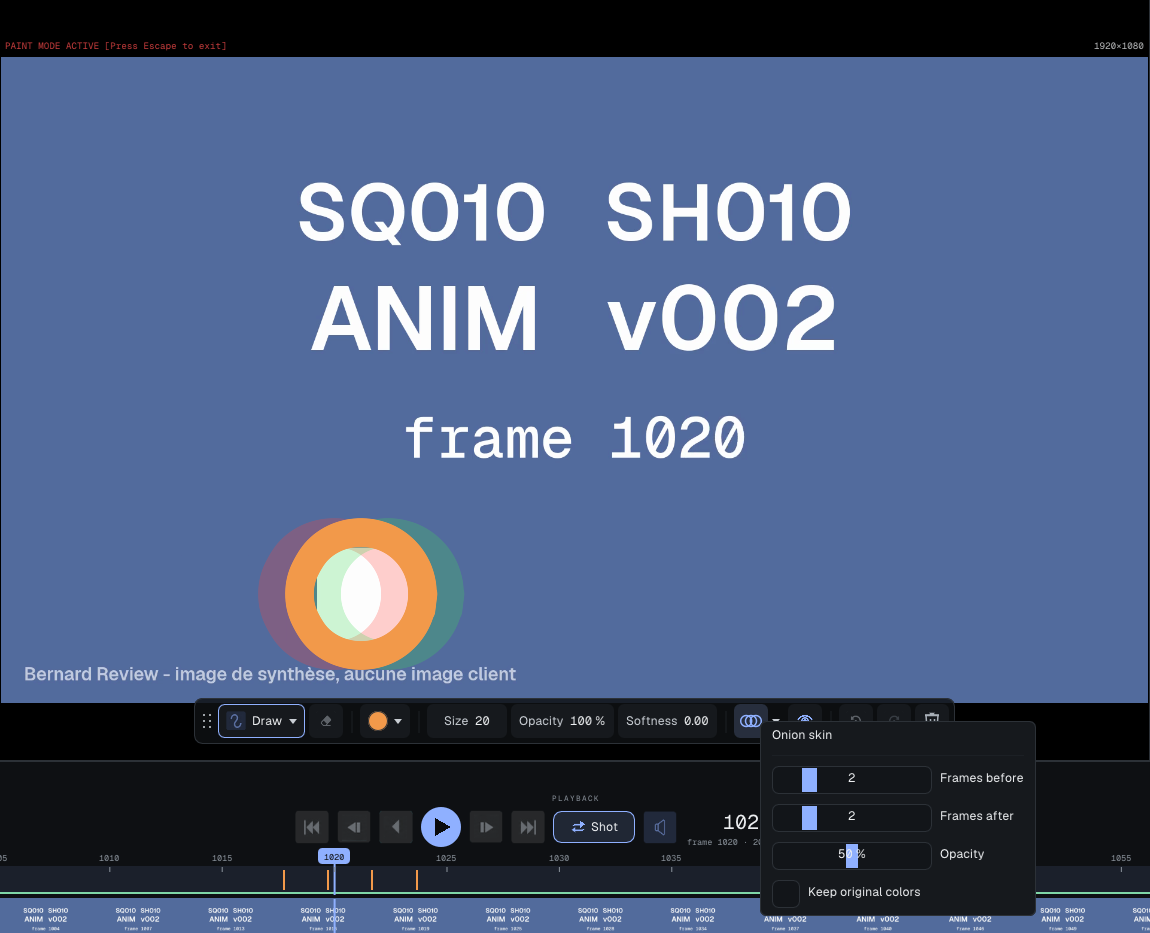
Onion skinning ghosts the strokes of the neighboring frames under the current one (the strokes only, not the picture). It is how you check that a note follows the motion instead of jumping about. A click turns it on; its arrow, or a right-click, opens its settings: how many frames before and after (0 to 10, 2 by default), the opacity of the nearest one (50% by default, the farther ones fade) and Keep original colors. Unticked (the default), the frames before are tinted red and the frames after green.
In A/B
You draw on the picture you see. In A alone the stroke goes on A, in B alone on B. In the wipe it goes on the side where it starts, even if it crosses the divider. Each drawing belongs to the clip and the version of its track; in Review Notes it is labeled A v003 or B v004.
Notes
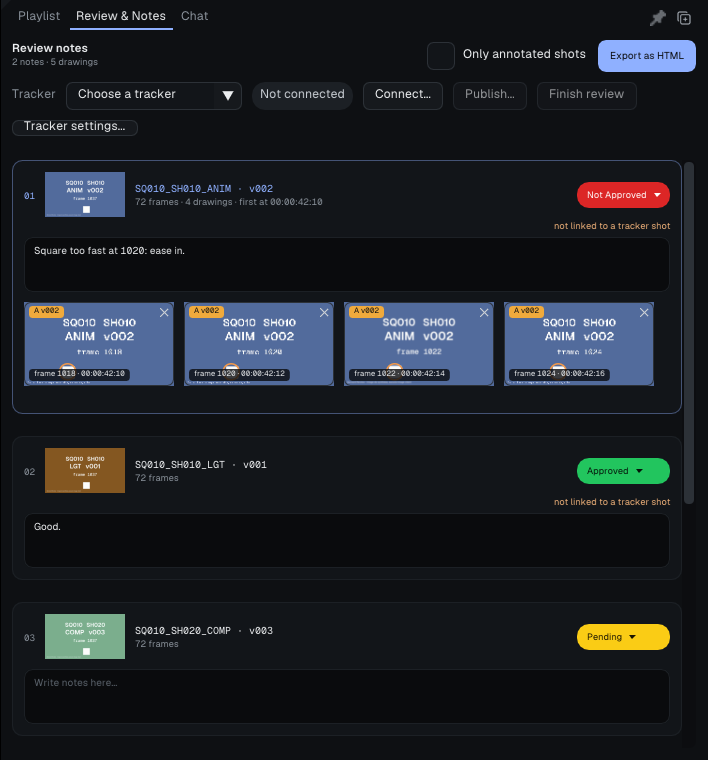
The Review Notes tab of the Media & Session panel gives every clip its own note box:
- Type into the box: the text is attached to the clip.
- Every frame you drew on appears under it as a thumbnail with its number. Click the thumbnail to take the viewer back there.
- The red cross on a thumbnail deletes its drawings, after a confirmation.
Ctrl+RightandCtrl+Leftjump to the next or previous annotated frame: a way to walk through every remark without hunting for it.
Each note is a card: at its head, the clip's name and version, its frame count and number of drawings, and its status pill (Approved, Not Approved or Pending), which opens the status menu. Each drawing is labeled with its track and version (A v002) and its frame number and timecode. At the top of the tab, Only annotated shots hides the clips without a remark.
Notes and drawings are saved in the playlist (.bpl). To take them out of the player, see Notes and export; to send them to a tracker, see Trackers.
Going further: the complete manual, part 5 (Help > User Guide).